Last Asylum: Plague
Install on Mac
It takes about 15 minutes: we install the AAS app and the BlueStacks Air emulator, then start the first script. You need an Apple Silicon Mac (M1, M2, M3, M4 or M5). The yellow frame on every screenshot shows where to click, and the numbers in the frames give the order. Click a screenshot to open it full size.
1Open the AAS bot
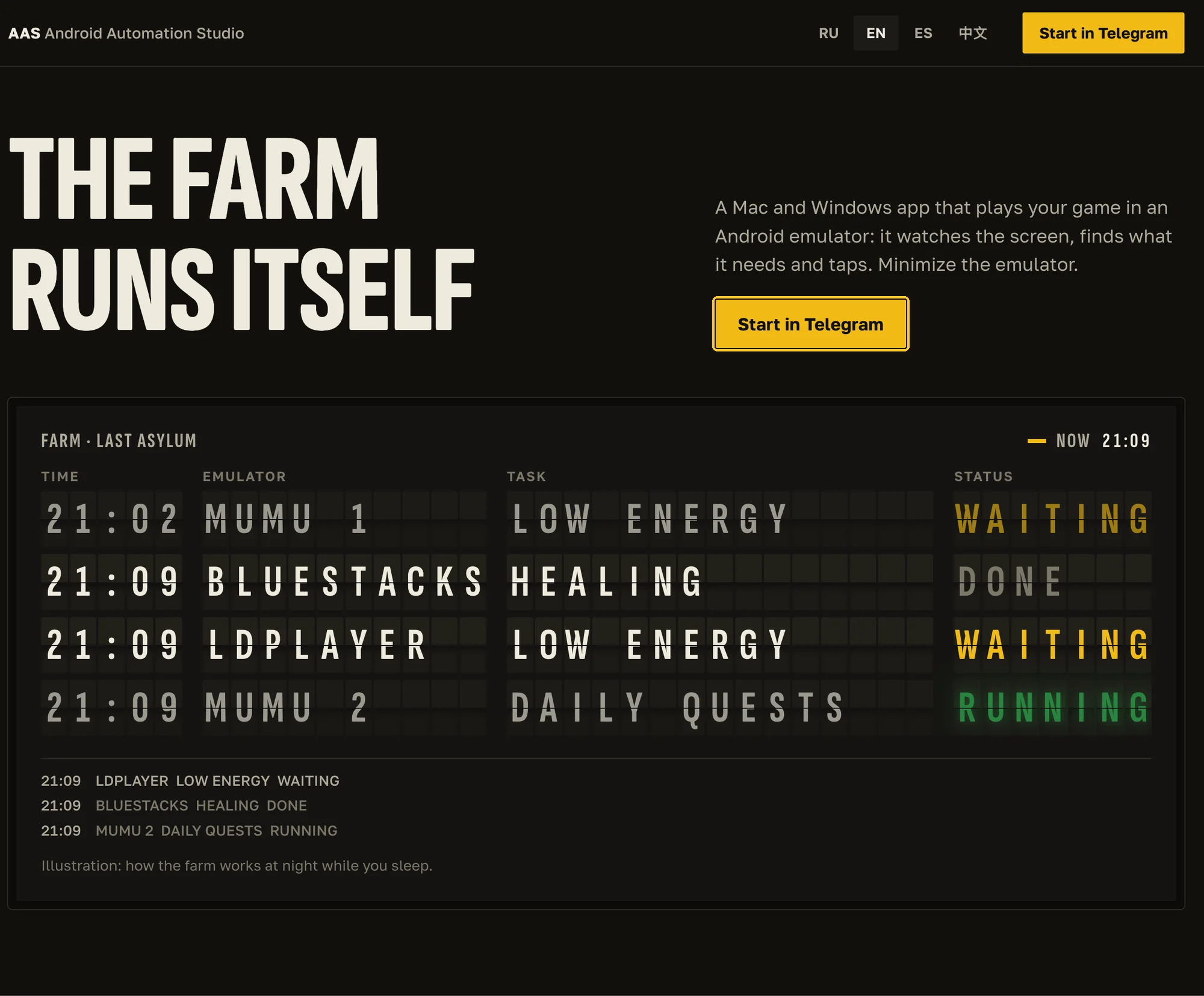
On aas.farm, click “Start in Telegram”.
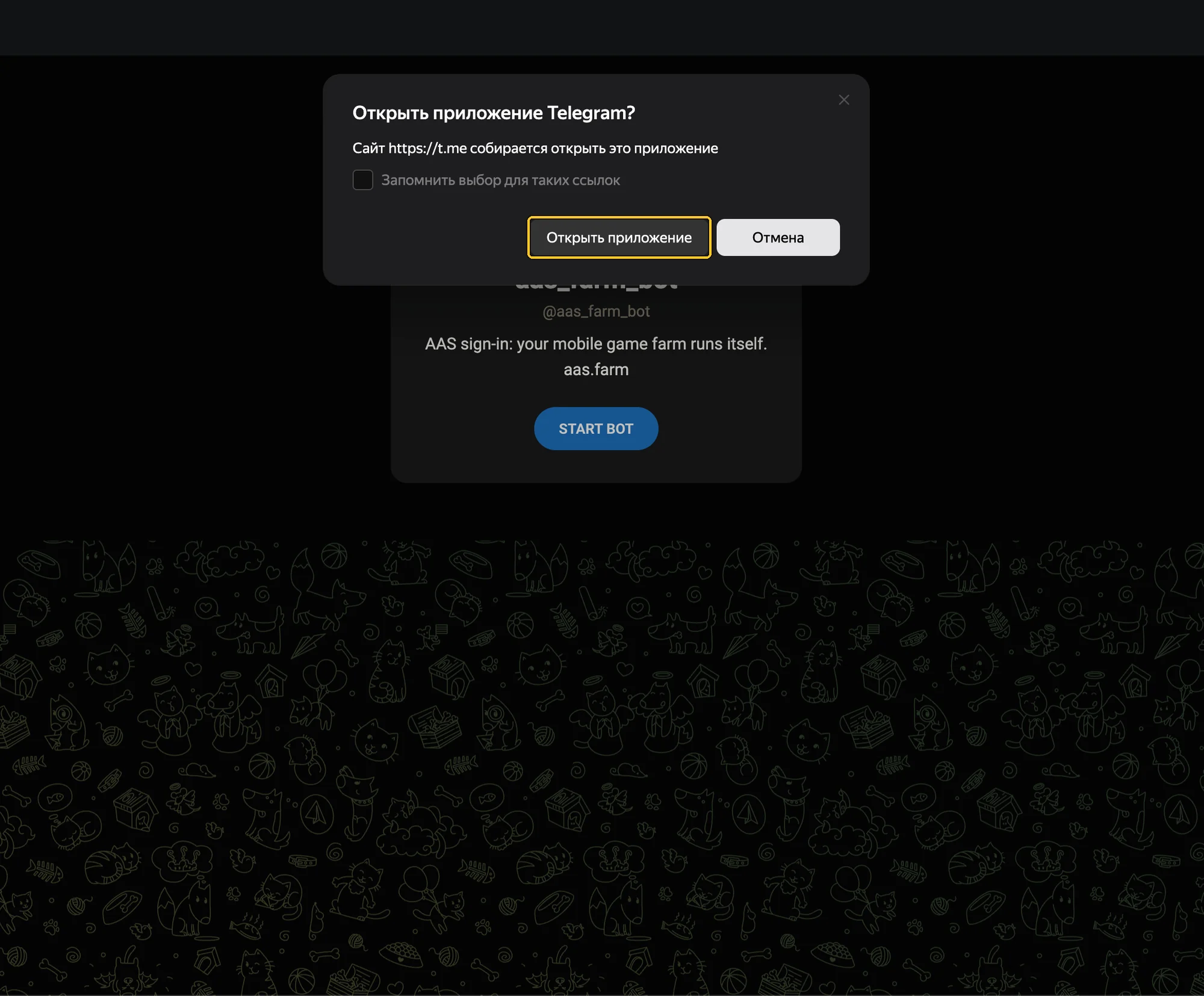
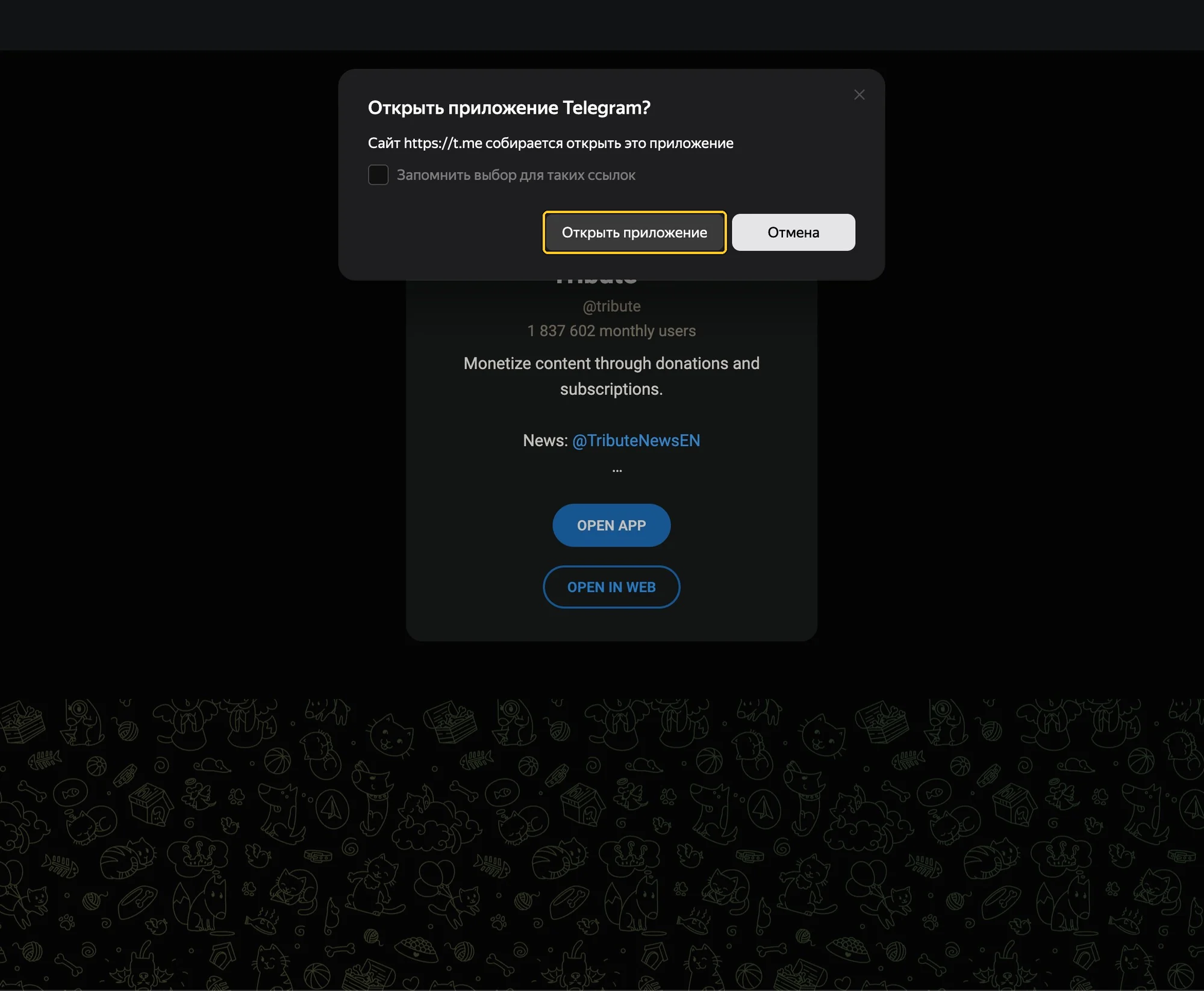
The browser opens the bot page and asks whether it may open Telegram: allow it, then click “Start” in Telegram or send the bot the /start command.
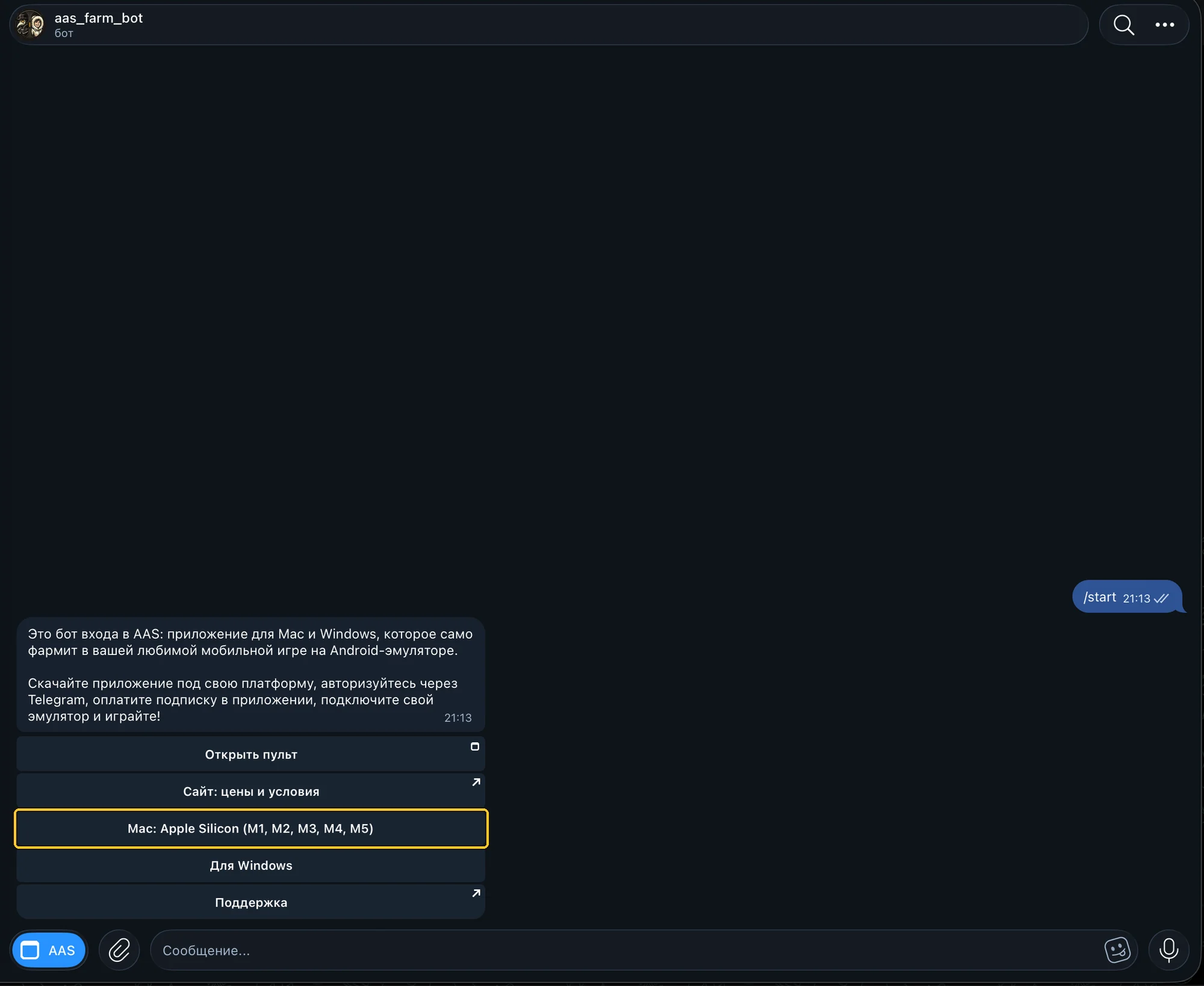
The bot replies with a welcome message and buttons. Click “Mac: Apple Silicon (M1, M2, M3, M4, M5)”.
2Download and install AAS
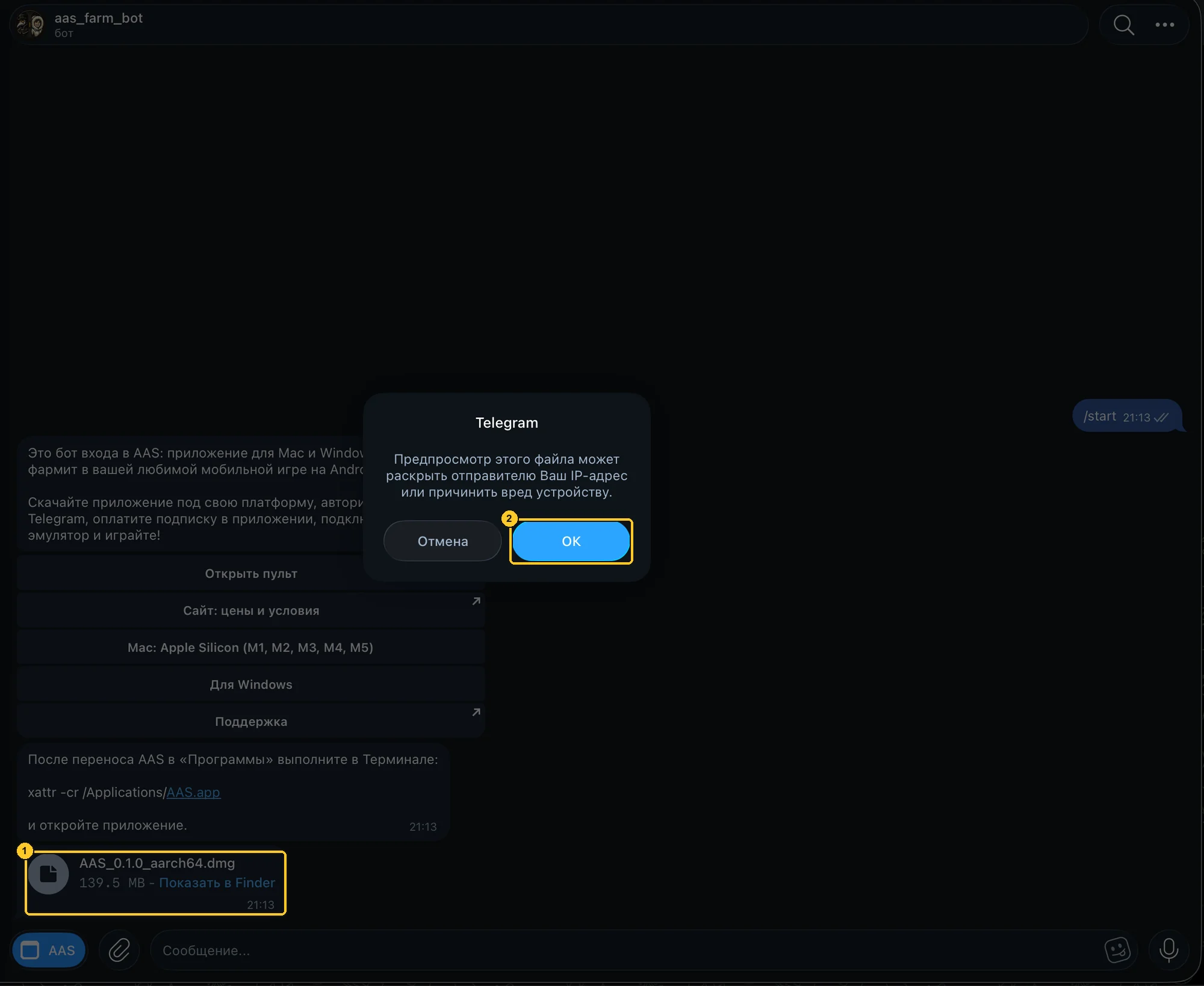
The bot sends the file AAS_…_aarch64.dmg and a message with a Terminal command. Click the file (1), and when Telegram warns about previewing the file, click “OK” (2).
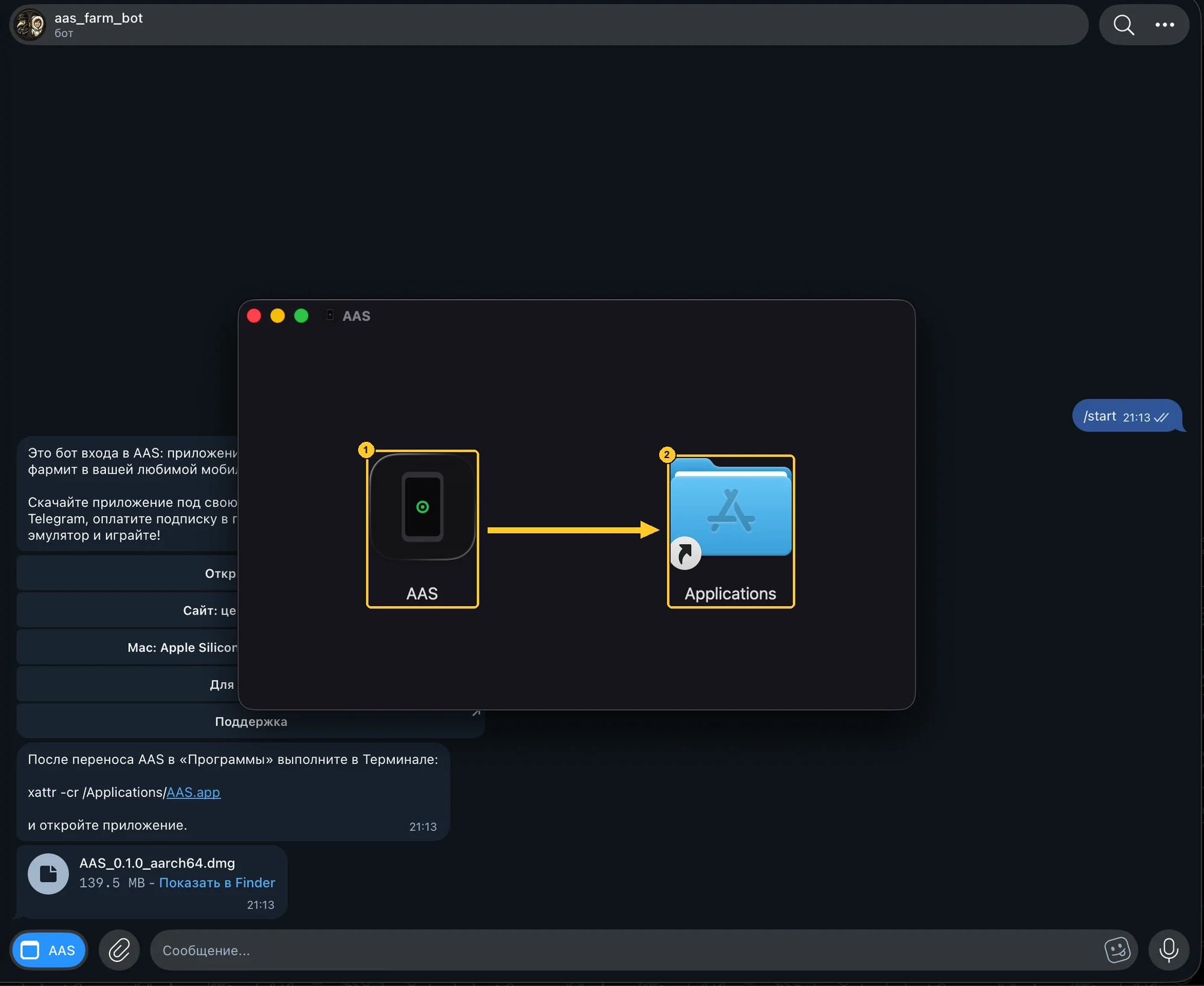
The installer window opens. Drag the AAS icon (1) onto the Applications folder (2), and the app is copied to Applications.
3Allow the launch in Terminal
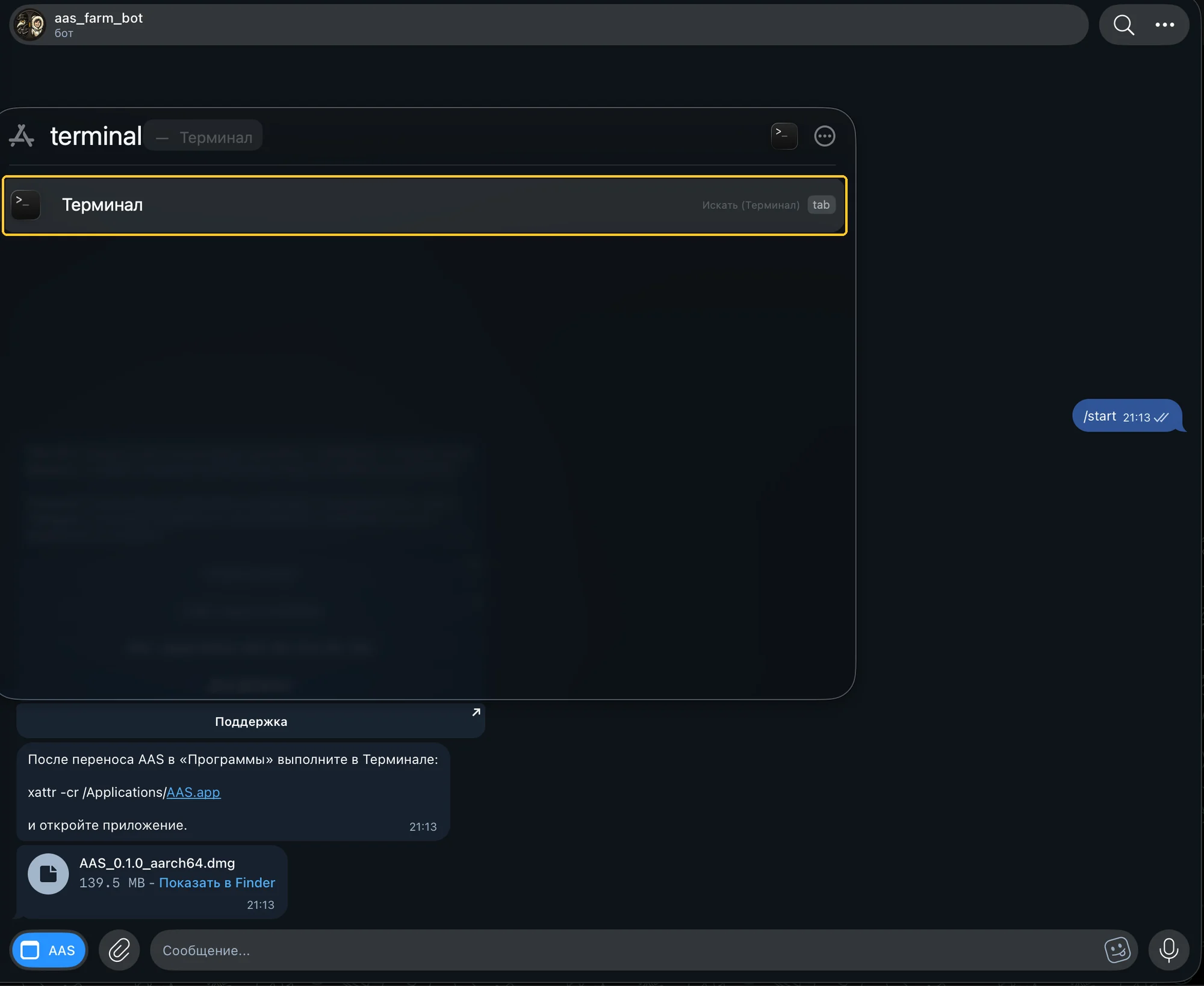
The app is not notarized by Apple yet, so macOS will not open it as is. One Terminal command fixes that. Press Cmd and Space, type terminal and press Enter.
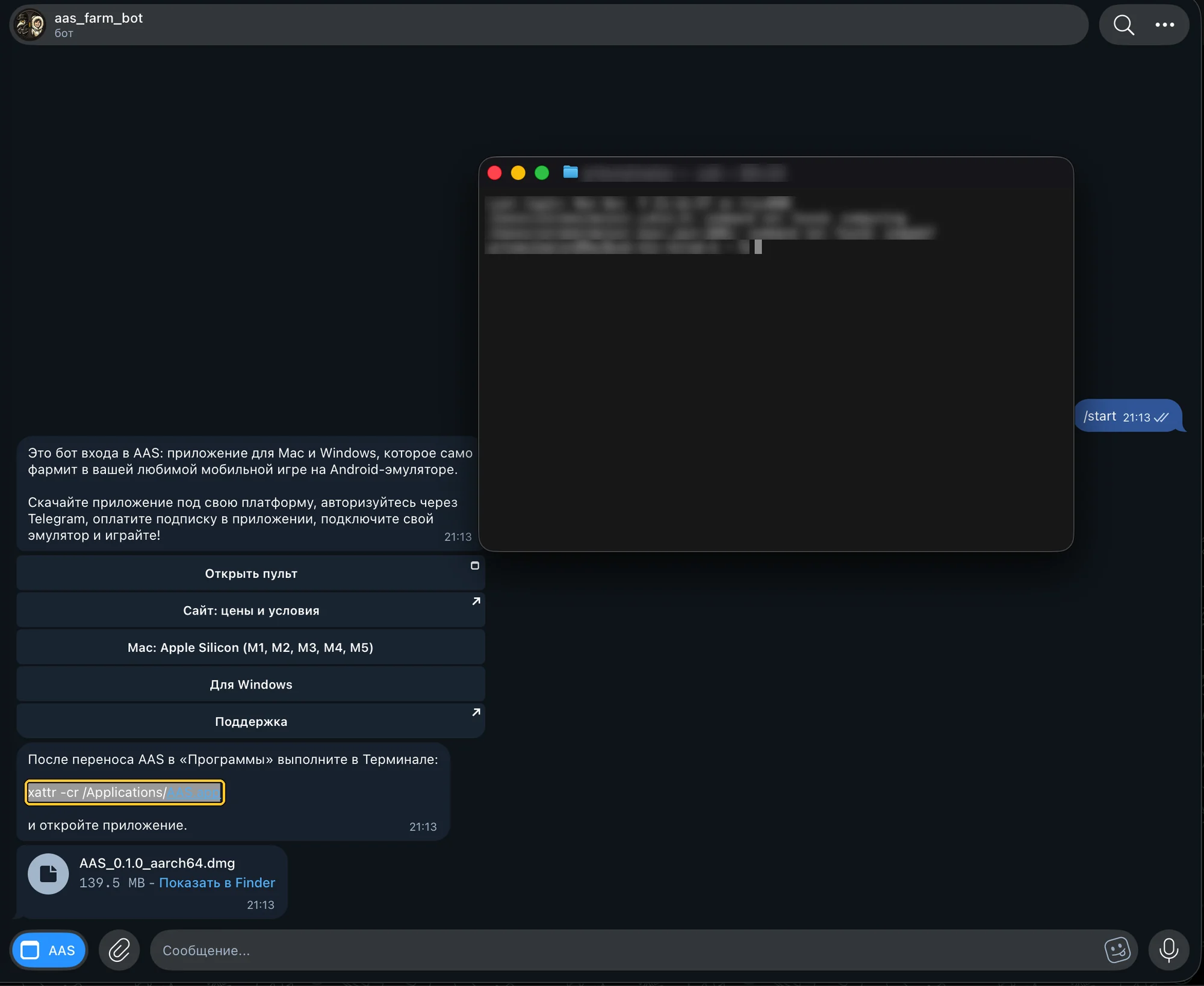
Select the command xattr -cr /Applications/AAS.app in the bot message and copy it (Cmd and C).
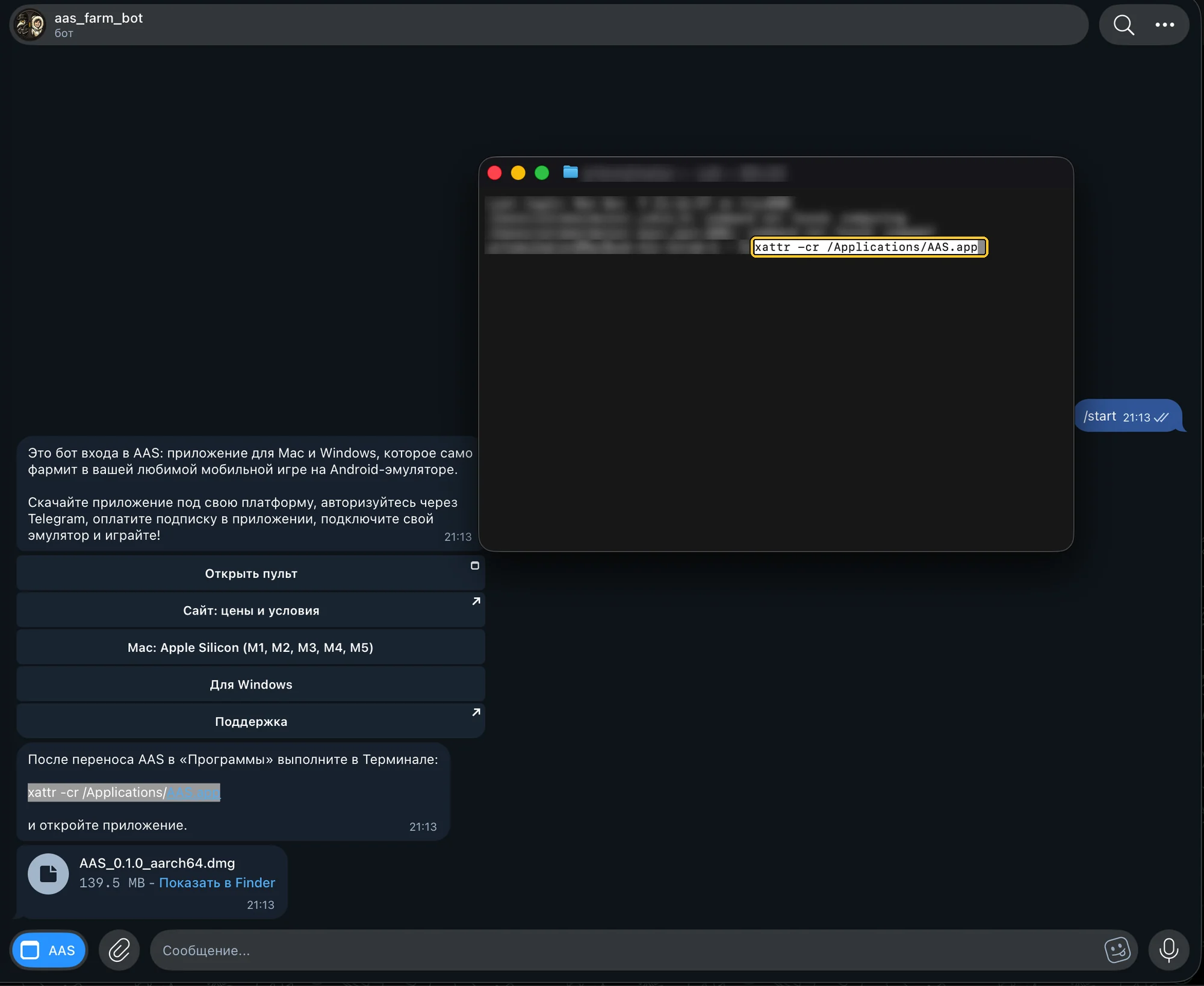
Paste the command into Terminal (Cmd and V) and press Enter. If Terminal prints nothing and waits for input again, it worked: you can close the window.
4Start AAS and allow keychain access
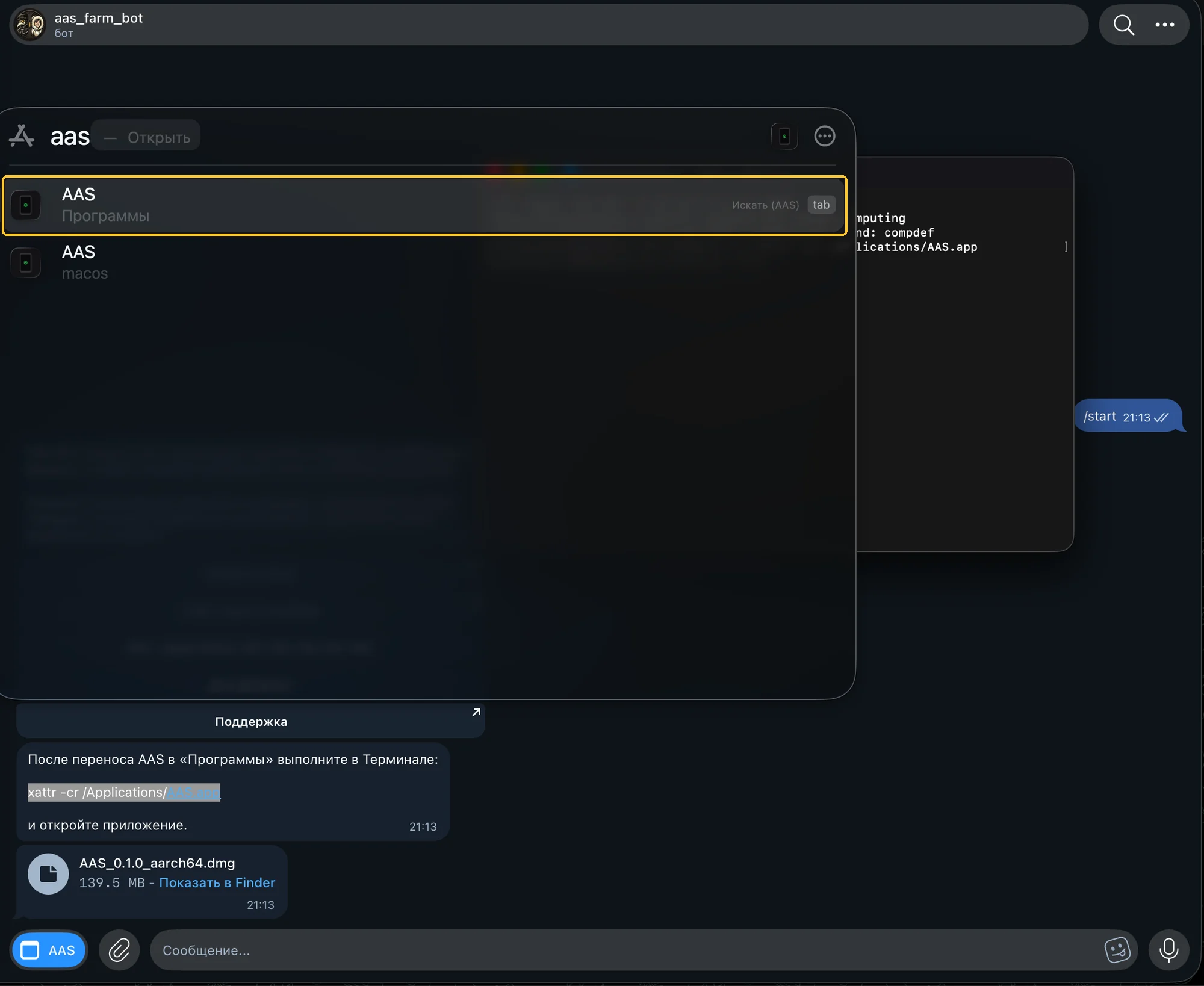
Press Cmd and Space, type aas and open the AAS app from Applications.
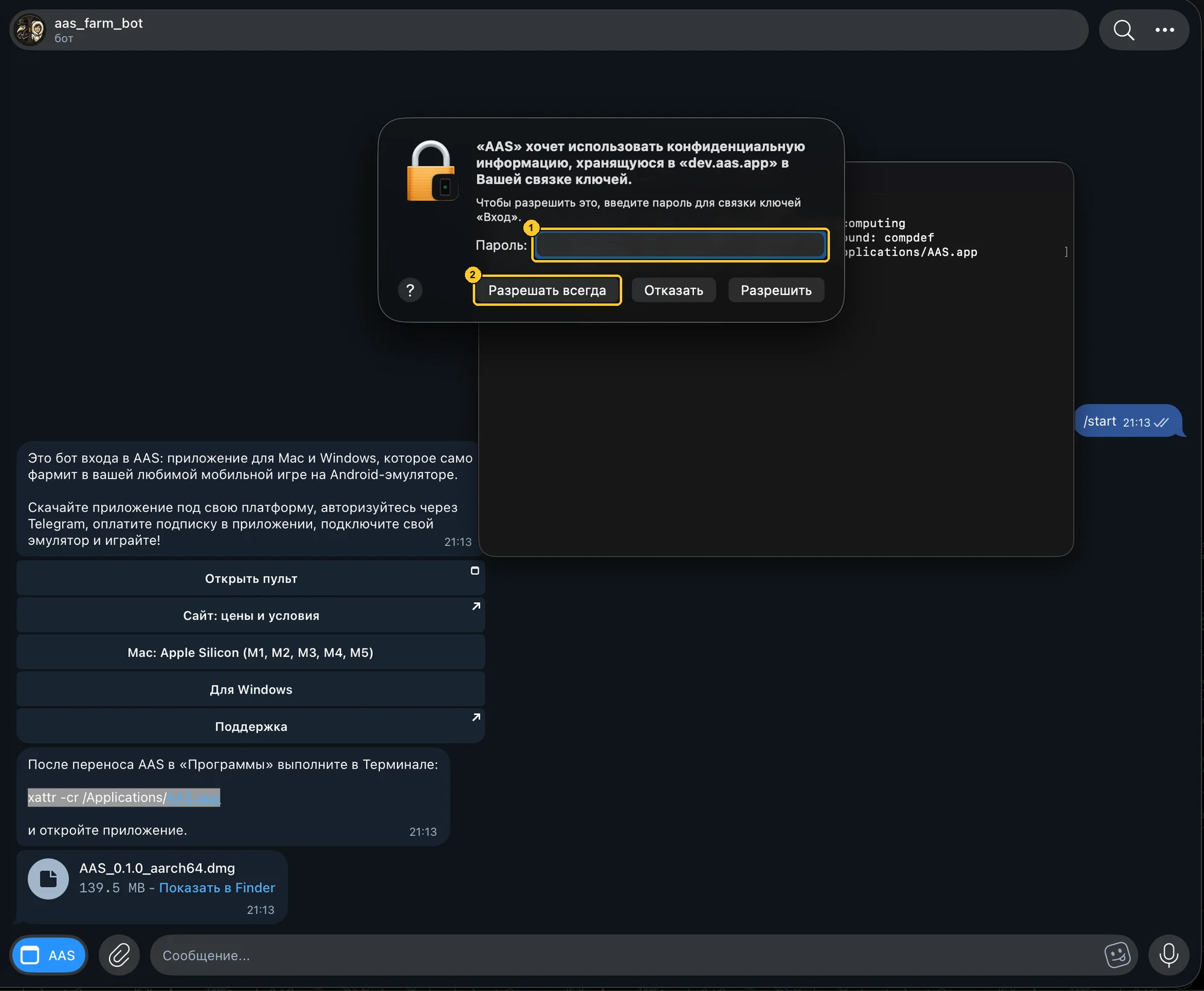
AAS keeps your sign-in in the macOS keychain, so the system asks for a password. Enter your Mac account password, the one you use to log in (1), and click “Always Allow” (2). “Allow” also lets the app in, but then macOS asks for the password on every launch.
5Sign in with Telegram
In the AAS window, click “Open Telegram” or scan the QR code with your phone. No password needed.
The bot asks whether to let this device in: click “Confirm”. The bot confirms the sign-in, go back to the app.
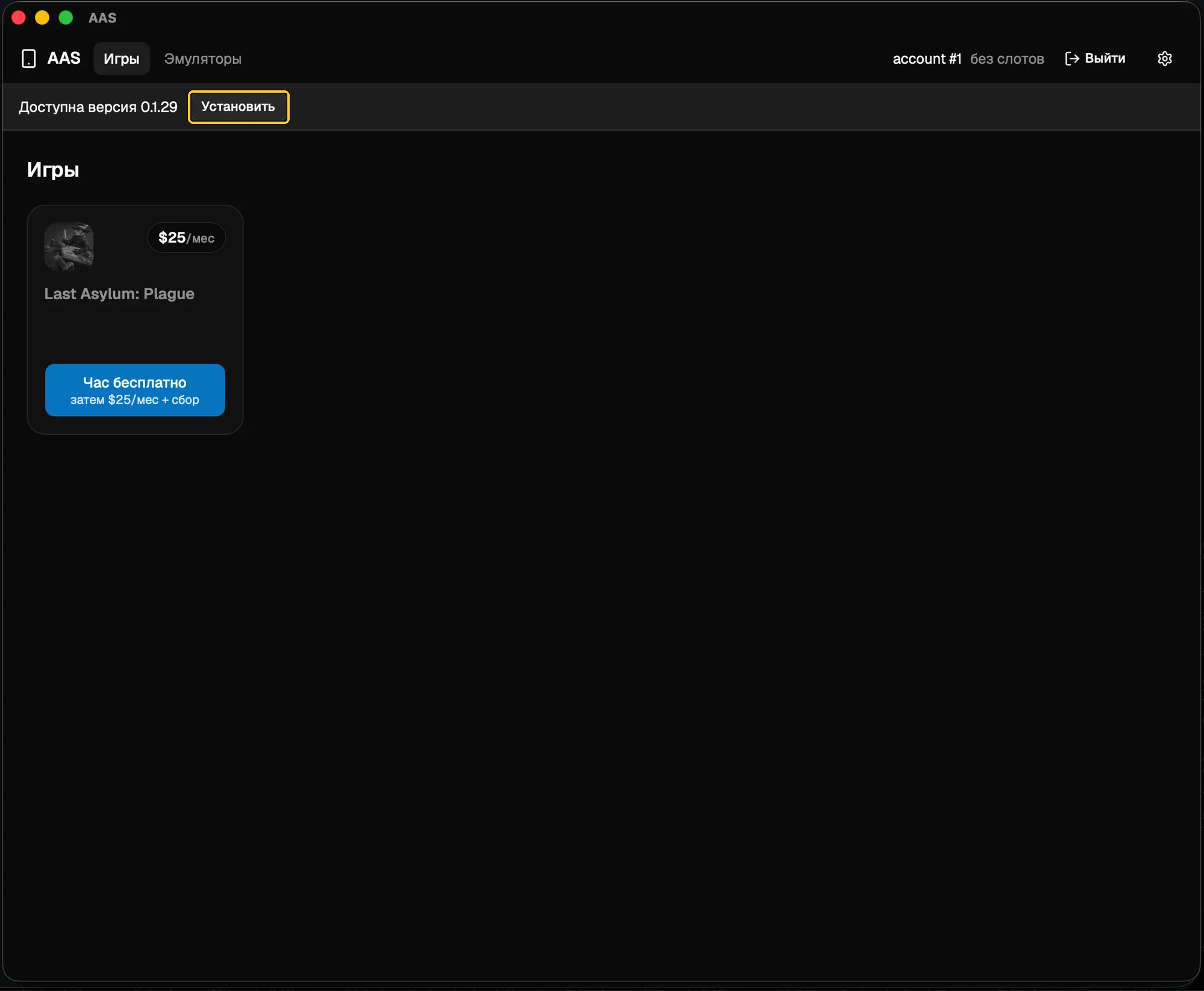
The top of the window offers an update: click “Install” and the app updates and restarts. If macOS asks for the keychain password again, enter it and click “Always Allow”. If the “Install” button does not appear, try turning your VPN on or off.
6Subscribe
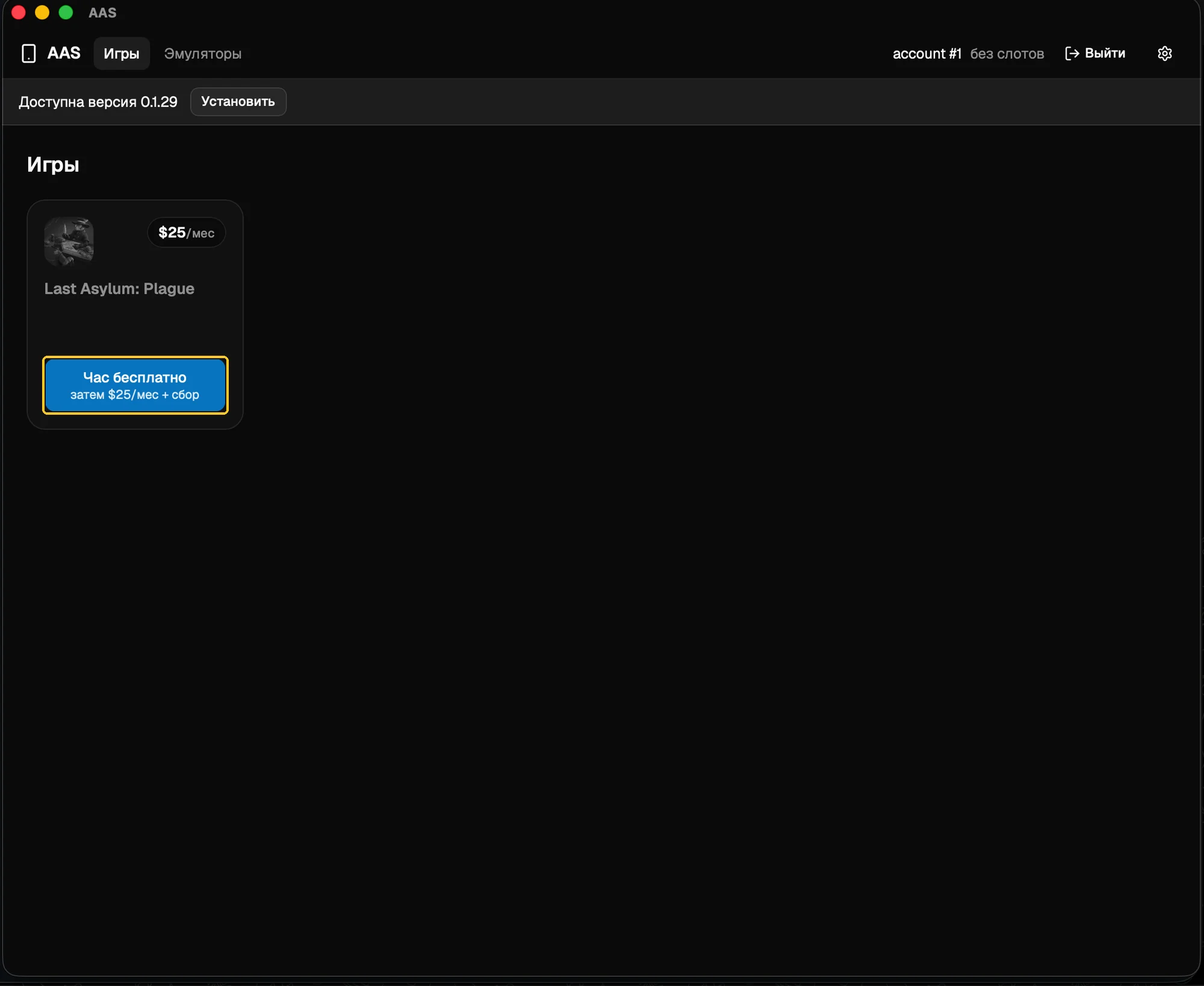
On the AAS home screen, click “Free hour” on the Last Asylum: Plague tile. A new account gets a free hour, after that the subscription is 25 USD a month per emulator.
If the payment opens in the browser, let it open Telegram.
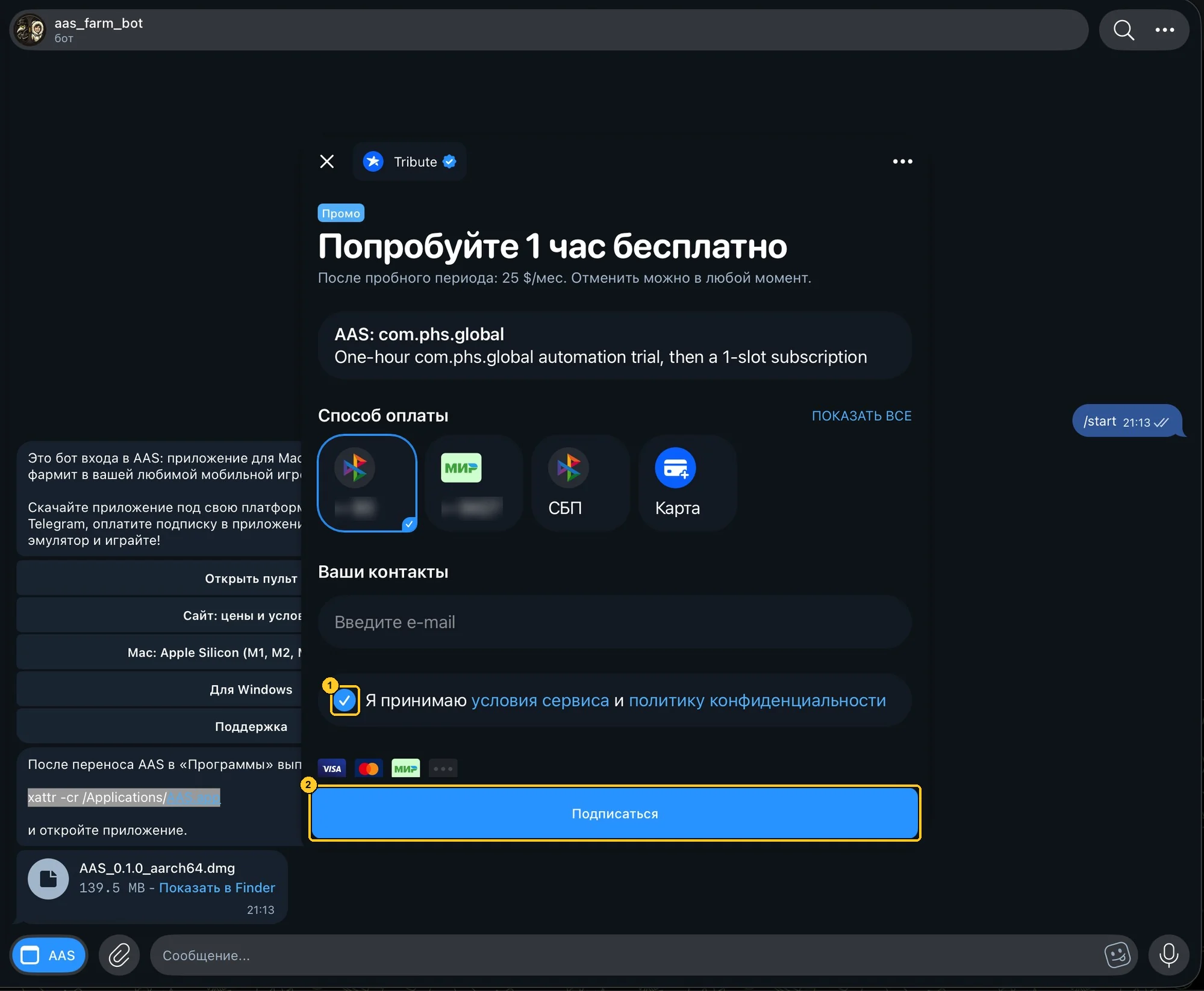
The Tribute payment opens in Telegram: accept the terms (1) and click “Subscribe” (2).
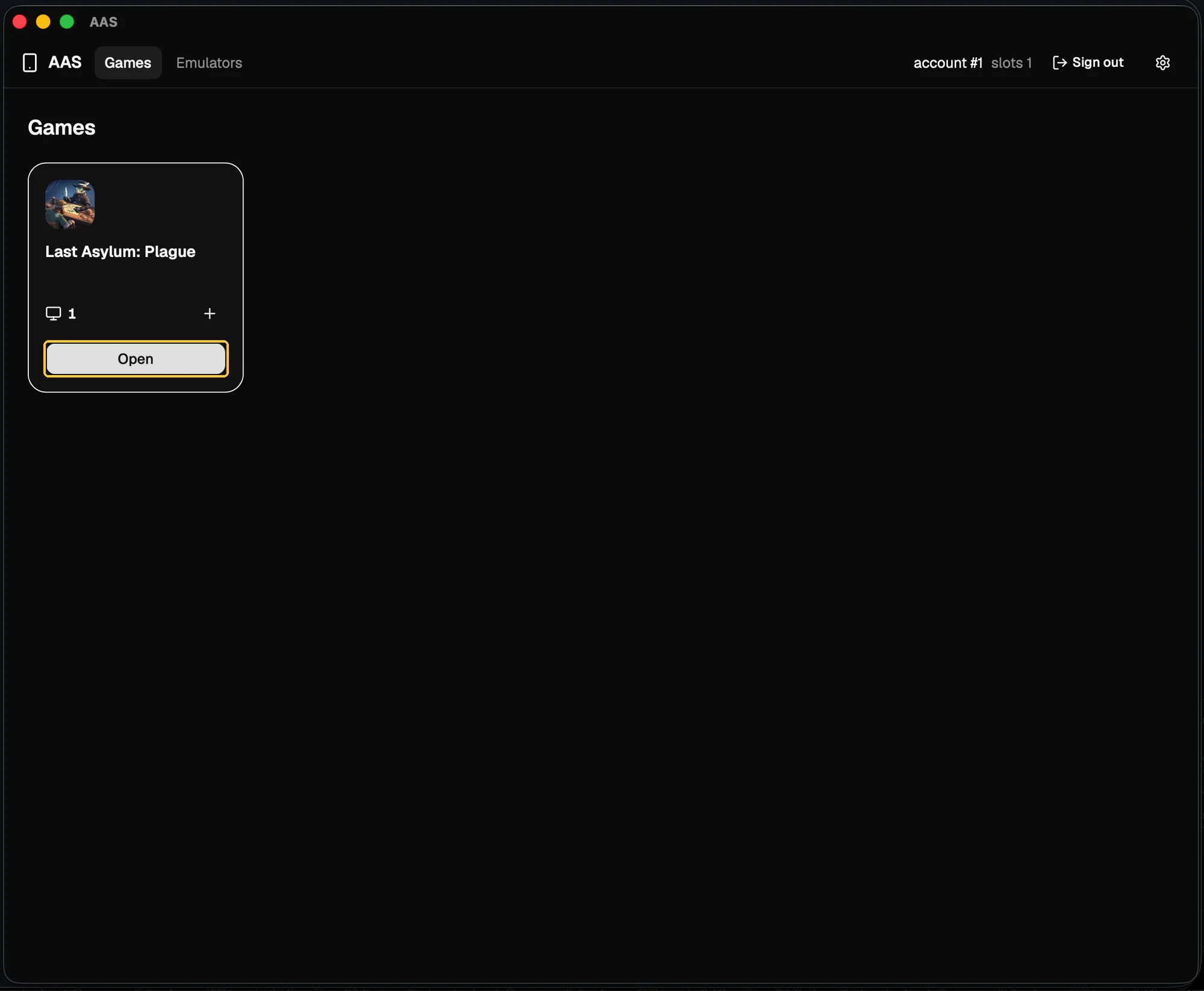
A few seconds after the payment goes through, the tile shows a slot: click “Open”.
7Install BlueStacks Air and the game
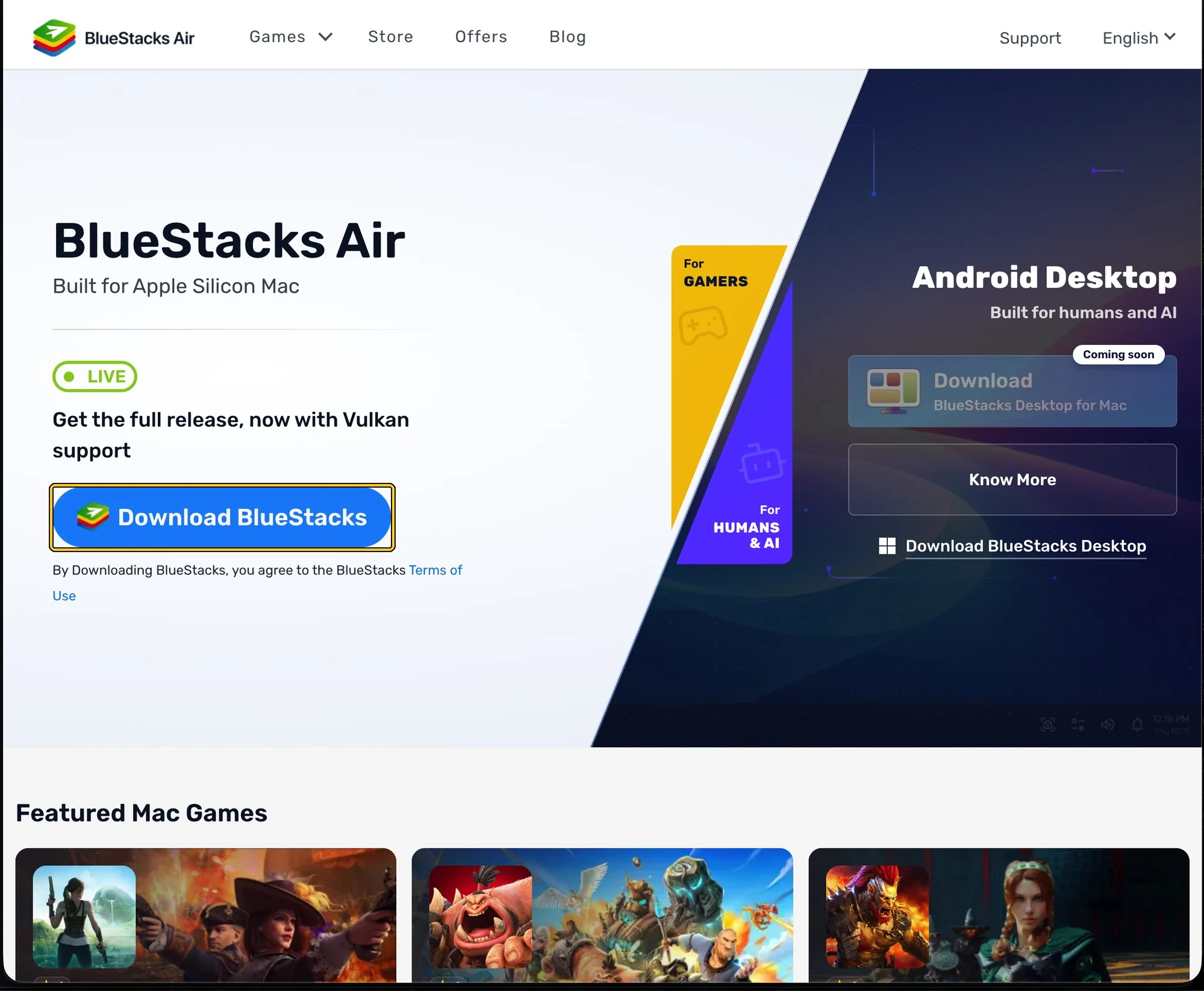
On a Mac, AAS works with the BlueStacks Air emulator. Open bluestacks.com, click “Download BlueStacks” and install the emulator from the downloaded file.
Start BlueStacks: press Cmd and Space, type bluestacks and open the BlueStacks app.
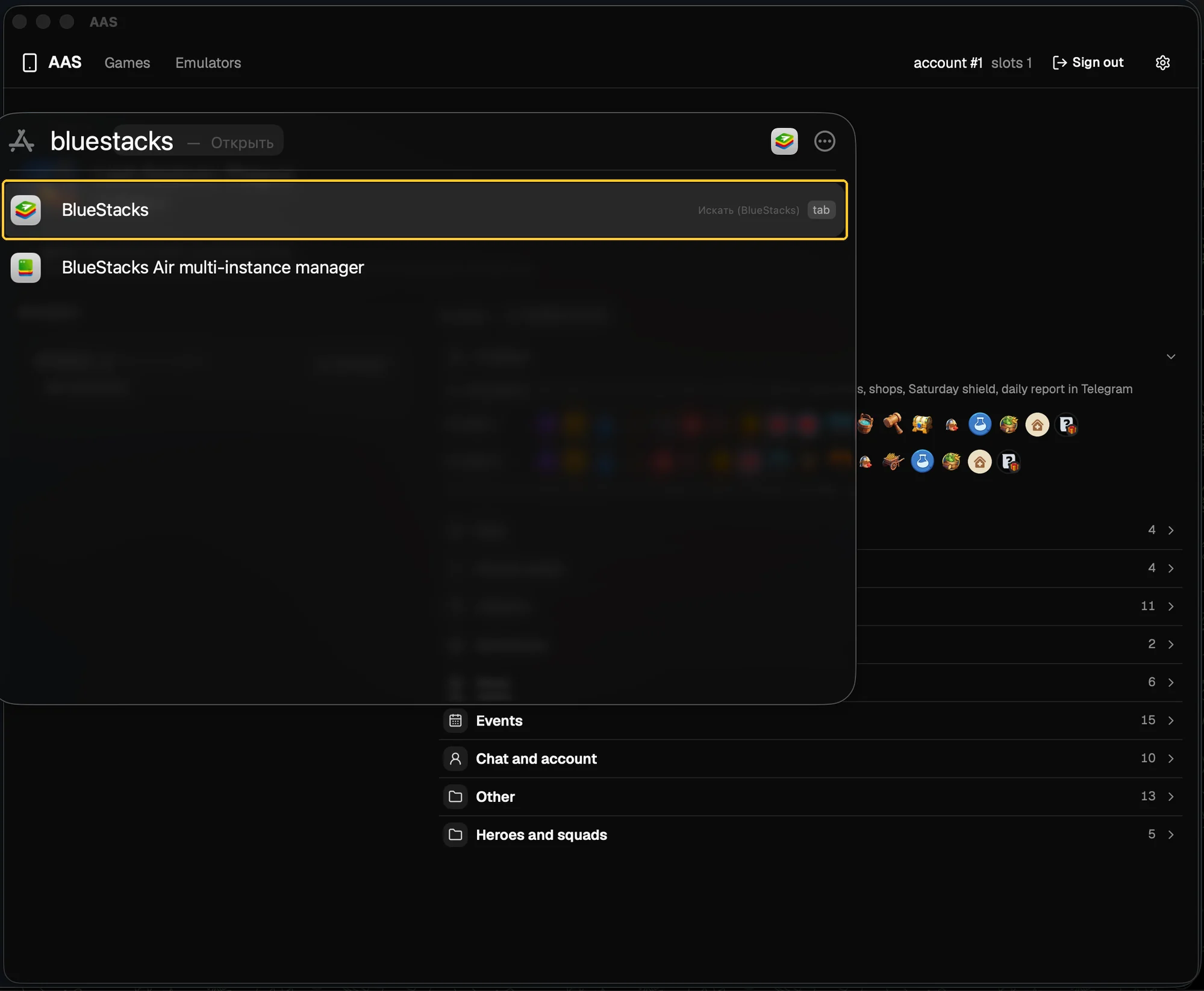
In BlueStacks, open the Store, find Last Asylum: Plague and install the game. Then sign in to your game account the same way as on your phone.
8Turn on ADB
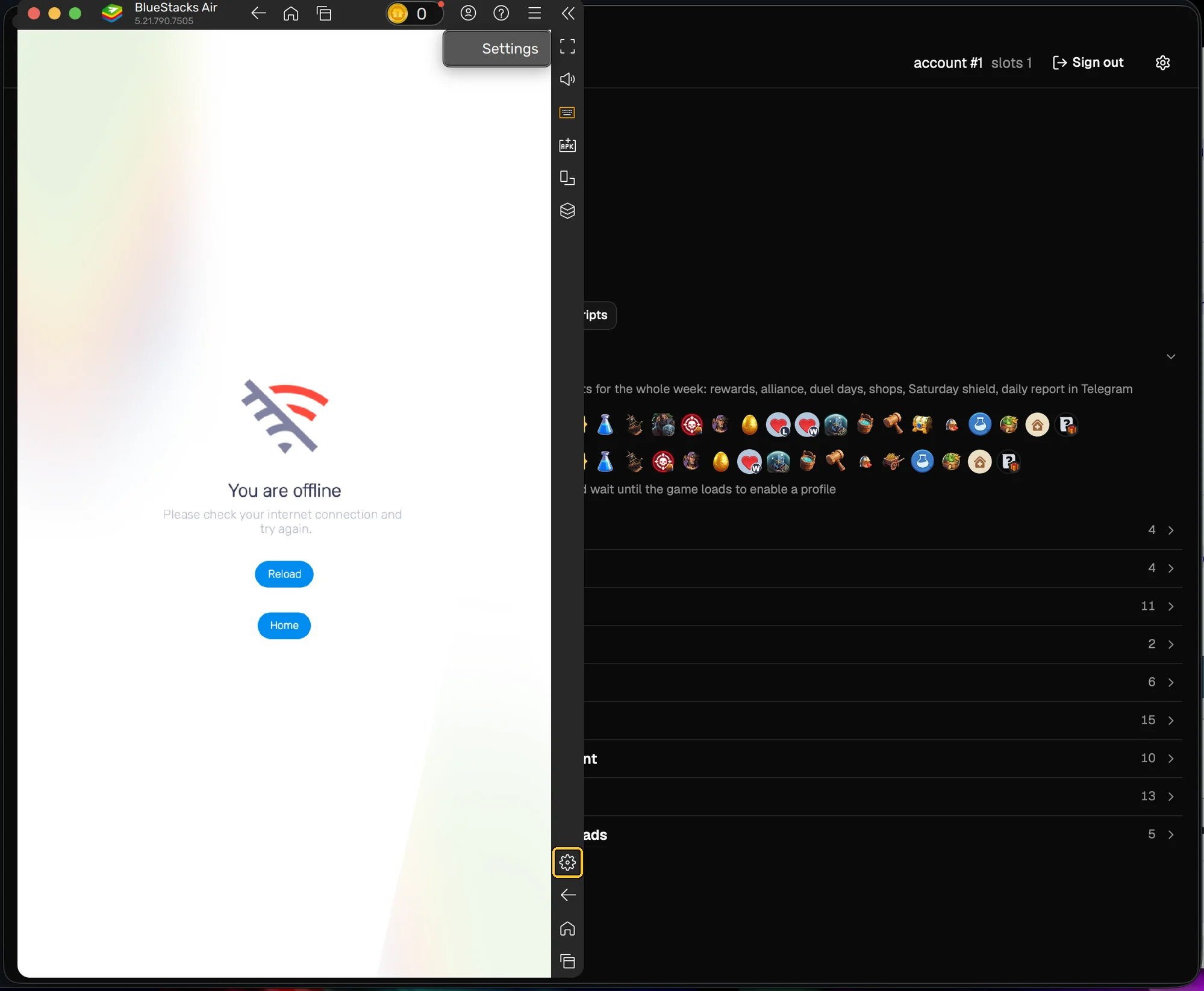
In BlueStacks, click the settings gear at the bottom of the side panel.
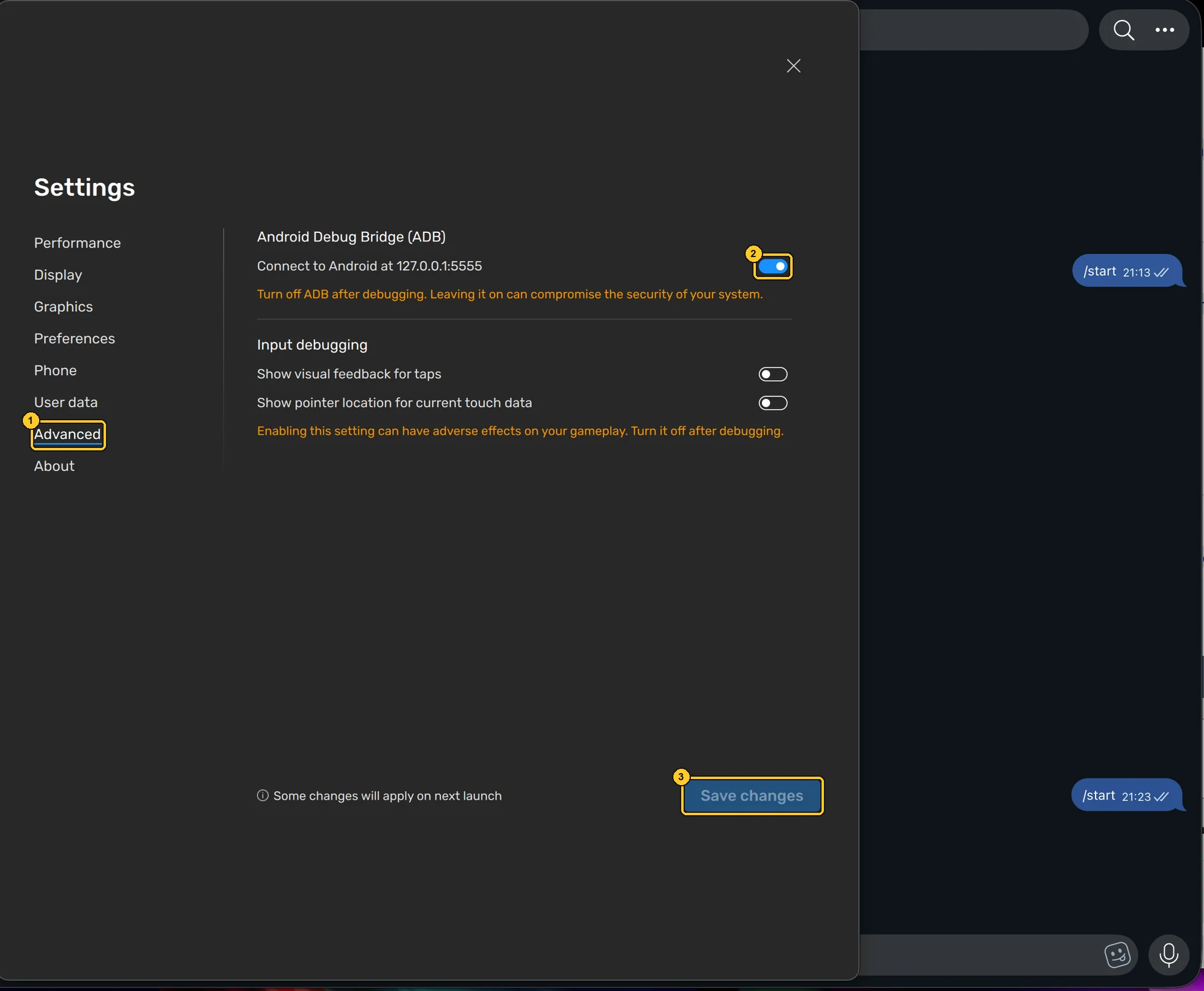
Open “Advanced” (1), turn on “Android Debug Bridge (ADB)” (2) and click “Save changes” (3).
9Connect the emulator
Go back to the Last Asylum page in AAS. The running BlueStacks appears in the list within five seconds: click “Connect”. The “reconnect after connection loss” box at the top of the page is checked by default: after a connection loss, AAS brings the game back by itself.
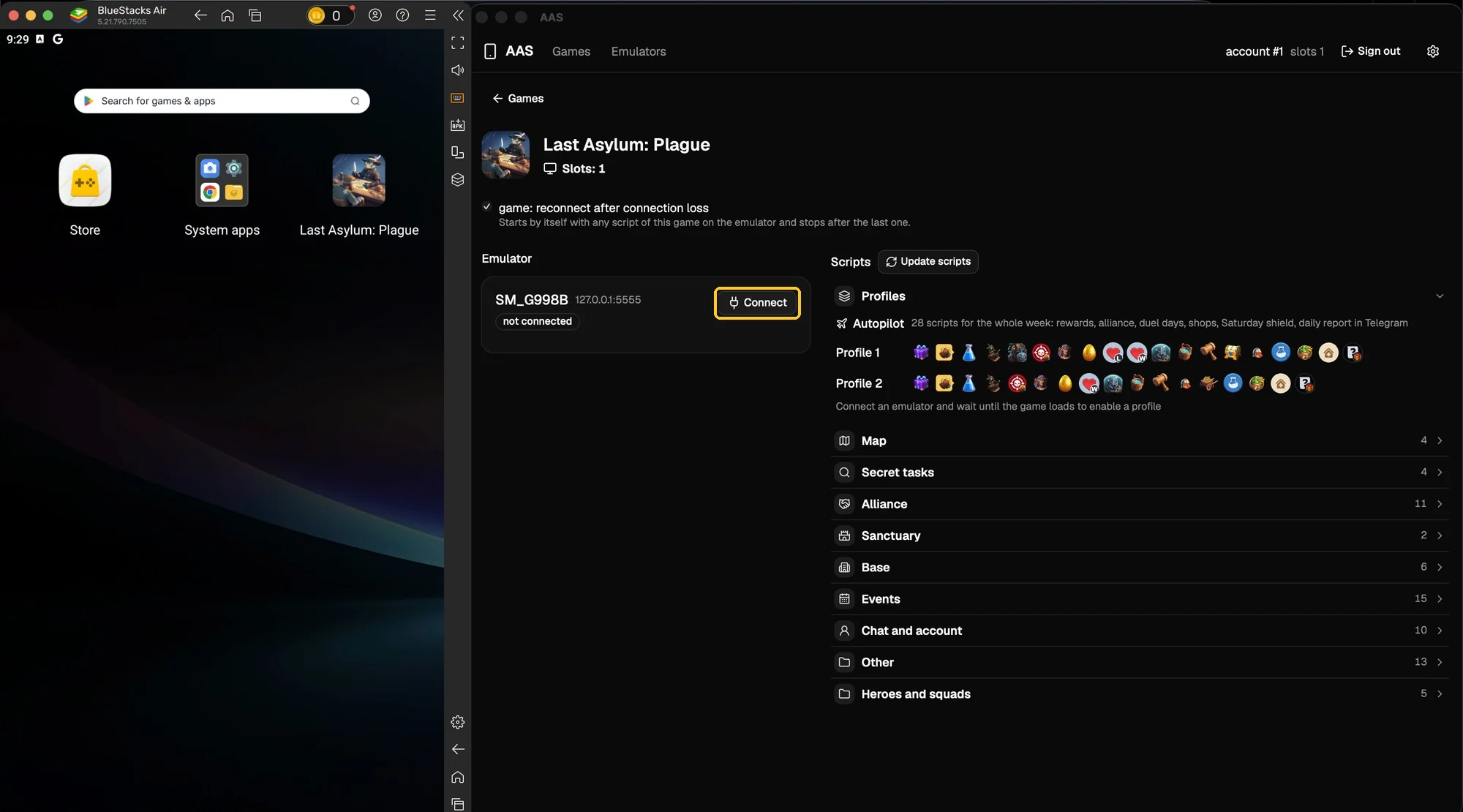
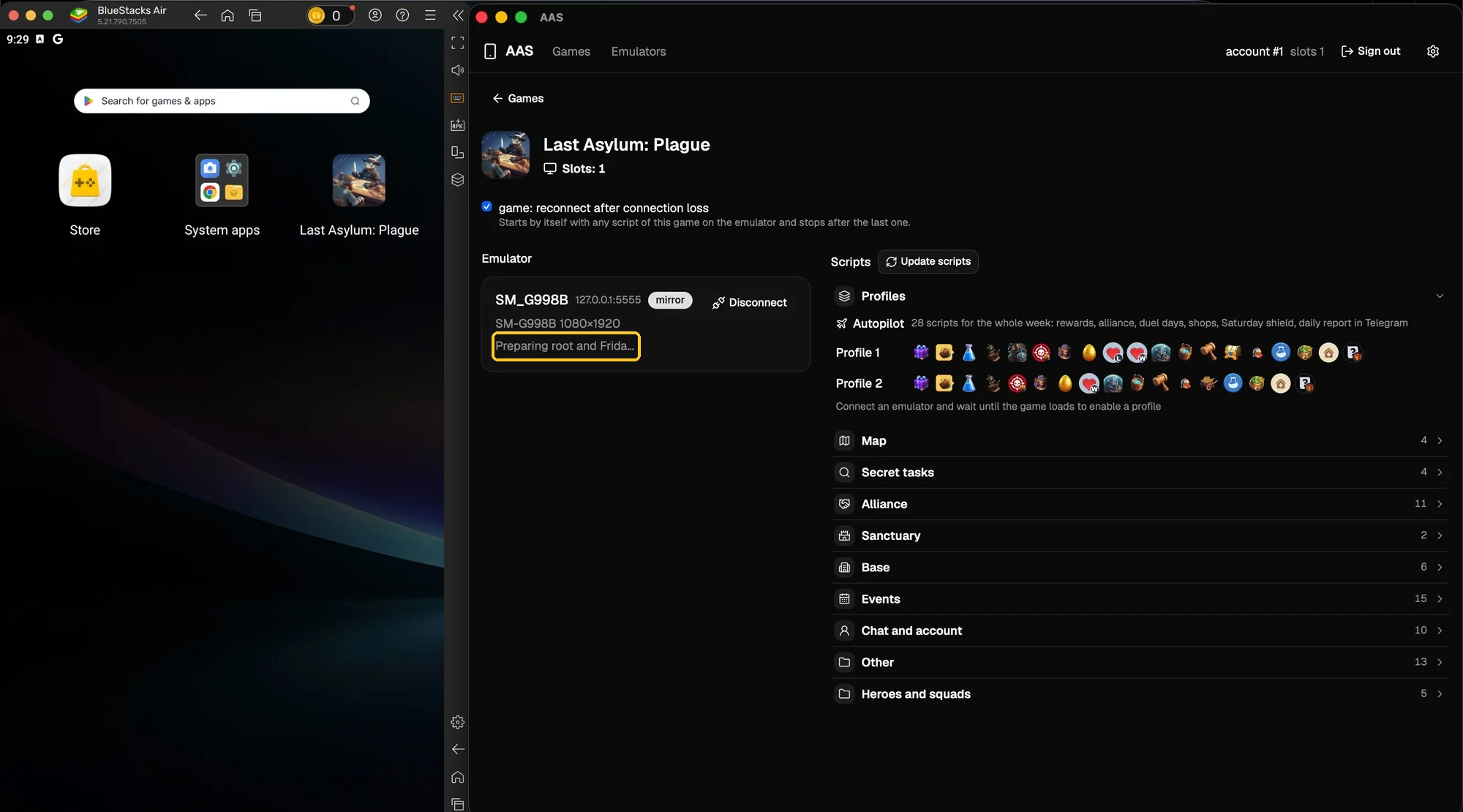
The app prepares the emulator by itself (the “Preparing root and Frida…” line), starts the game and waits for it to load, usually a couple of minutes. If the game never starts, open it in the emulator yourself, wait until your city with the Sanctuary loads, and connect the emulator again.
10Start scripts
Once the game has loaded, the scripts on the right become available. The easiest start is “Autopilot” in the “Profiles” group: it runs a set of scripts for the whole week. A single script starts with the “Run” button in its group, and “Stop” stops it.
Good to know
- While scripts run, you can play the game yourself right in the emulator.
- Scripts can run in parallel: pick the next script and click “Run” again.
- After each AAS update, macOS may ask for the keychain password once more: that is normal, click “Always Allow”.
If something goes wrong, write to us. The support chat is anonymous.
Contact support